

Place-based boundary
Set a supported virtual area around a known family location.
A geofence creates a virtual boundary around a place such as home, school, practice, or a caregiver’s house. FonSee can provide supported entry or exit alerts for an authorized family phone, giving parents a practical cue to check in.
Use FonSee only on an authorized phone, with required notice and consent. Support varies by phone, setup, and plan.
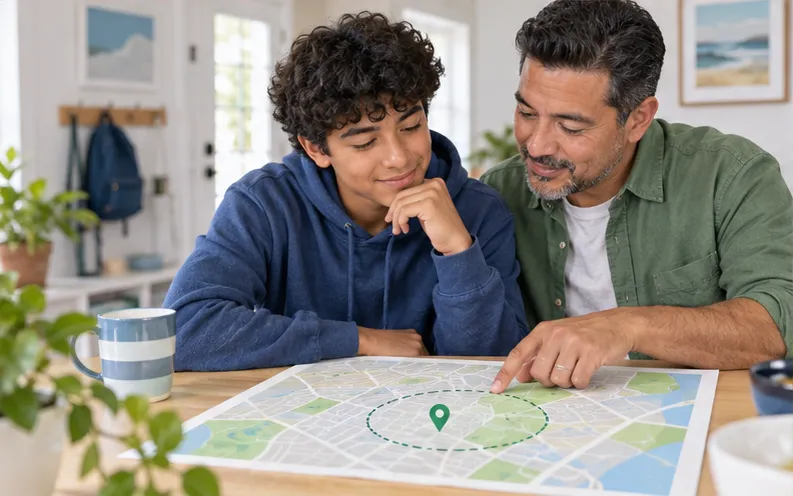
Set a supported virtual area around a known family location.
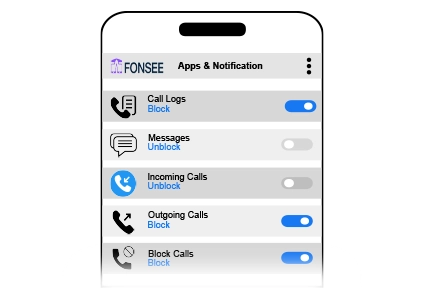
Receive available entry or exit alerts tied to the phone.

Check when the phone reported the change before reacting.
A geofencing app uses phone location to detect when a connected device enters or leaves a defined area. FonSee can provide supported alerts after the boundary is set.
A useful boundary matches a real routine: arriving at school, leaving practice, or reaching a caregiver. Draw it wide enough for GPS variation and nearby entrances rather than around one exact doorway. The alert can reduce repeated check-in messages while giving a teen a known, limited location rule instead of constant map watching.
GPS drift, tall buildings, poor signal, low power, permissions, network delay, and a phone left behind can create late, missing, or incorrect alerts. Maps provide phone context, not a person’s full circumstances. Buildings, poor signal, battery settings, and a phone left behind can change what the data means.
The sample view keeps geofence alerts, the selected family phone, and the available time or source details together. Start with the item tied to your question. Check its label and surrounding context instead of opening a wider history without a reason.
GPS drift, tall buildings, poor signal, low power, permissions, network delay, and a phone left behind can create late, missing, or incorrect alerts. Check the available source and time before deciding what the information means.
A defined reason keeps the review focused and easier to explain. These examples show how the feature can support a conversation without turning ordinary phone use into a constant investigation.
Use a reasonable boundary around the campus and check the timestamp before assuming the student is late.
Pair the departure alert with an agreed ride or message plan, especially when schedules change.
Set the area together and confirm which days the rule applies so a normal change does not become an alarm.
Location information depends on phone power, permissions, GPS conditions, network access, device settings, and plan. Check the timestamp before acting on a map point.
Check device compatibilityConfirm the exact phone, operating system, setup method, permissions, connection needs, and FonSee plan before you depend on the feature.
Agree on the places, times, and safety situations when a location review is appropriate. Give a teen more privacy as independence grows.
Open the smallest useful part of geofence alerts, check the available source and time, and use it to confirm the routine and contact the child when needed. Close the dashboard when the question is answered.
A location point may be delayed or imprecise. Call or message first when possible, and use emergency services rather than an app for an urgent danger.
Connect only a phone you own or are allowed to manage. Follow the notice, consent, privacy, and recording rules that apply where you live.
Use only the places tied to a safety or family routine. Remove old geofences and give teens more privacy as independence grows.
Use a strong password, limit account access, sign out on shared computers, and keep sensitive phone information out of group chats and social posts.
Parents need useful context and a clear next step, not more data for its own sake.
“The school boundary replaced several daily messages. When an alert was late, we checked the timestamp and called before assuming anything was wrong.”
Check the practical details before connecting a family phone.
It can provide supported entry or exit alerts when the connected phone crosses a defined location boundary.
No. Device support, permissions, phone power, connection, app rules, and setup timing can limit what appears or changes.
Support differs by operating system and setup method. Check the exact phone, version, permissions, and FonSee plan before buying.
Make it large enough to account for buildings, parking areas, entrances, and normal GPS variation. Test it before relying on the alert.
No. Support varies by phone, operating system, setup, permissions, connection, and plan.
Yes. Use it only on an authorized phone and follow applicable notice, consent, and privacy rules.
Check that the phone is online, connected, supported, and allowed to provide the feature.
No. Phone data gives limited context. Ask what happened before reaching a conclusion.
Check location support, choose a sensible boundary size, and agree on what happens after an alert.
