
Setup questions
Share the phone model and the setup step where the problem started.
Tell the FonSee team which phone you are setting up, what you expected, and the last step that worked. That gives support a clear place to begin.
Use FonSee only on an authorized phone, with required notice and consent. Support varies by phone, setup, and plan.


Share the phone model and the setup step where the problem started.

Explain the account or purchase question without sending passwords or payment card details.
Name the feature, expected result, and what appears on the phone or dashboard.
You can contact FonSee through the form on this page or by emailing [email protected]. A complete request should include the device model, operating system, account email, feature name, and a short description of the problem.
State whether the issue affects sign-in, installation, connection, billing, or one feature. Include the exact wording of an error, but remove private names, chats, recordings, passwords, and payment details. Clear facts help the team avoid asking you to repeat steps. A short timeline is more useful than unrelated screenshots.
Email cannot confirm an urgent physical emergency or replace local emergency services. Support also cannot give legal advice about monitoring, consent, recording, or family disputes. A dashboard may show only the information the phone can provide. Missing, delayed, or partial data should be treated as a technical limit, not suspicious behavior.
The sample view keeps support details, the selected family phone, and the available time or source details together. Start with the item tied to your question. Check its label and surrounding context instead of opening a wider history without a reason.
Screenshots can expose email addresses, contacts, private messages, location, or payment details. Crop them carefully and send only what the support team asks for.
A defined reason keeps the review focused and easier to explain. These examples show how the feature can support a conversation without turning ordinary phone use into a constant investigation.

Say which setup step you reached, what the phone displayed, whether it was online, and which operating-system version it uses. This helps separate compatibility from a temporary connection problem.
Use the account email and describe the sign-in or password-reset step that failed. Never include the password itself or a one-time security code.
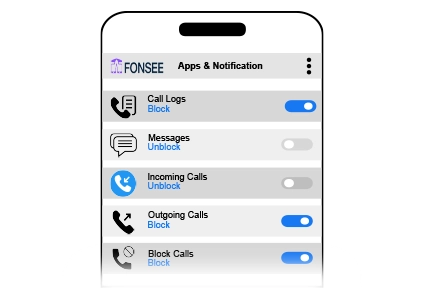
Name the feature, selected phone, last available update, and the checks you already made. Some information may be delayed or unsupported on that setup.
Available phone information depends on device support, permissions, connection, storage, account settings, and plan. Confirm what is included before setup.
Check device compatibilityConfirm the exact phone, operating system, setup method, permissions, connection needs, and FonSee plan before you depend on the feature.
Decide which information serves a real family need, who may view it, how it will be protected, and when it should be deleted.
Open the smallest useful part of support details, check the available source and time, and use it to describe the problem clearly. Close the dashboard when the question is answered.
Personal phone data can include private details about other people. Limit access, protect the dashboard, and avoid keeping copies without a clear reason.
Connect only a phone you own or are allowed to manage. Follow the notice, consent, privacy, and recording rules that apply where you live.
Remove private conversations, recordings, precise locations, children’s full names, school details, passwords, and financial information unless a secure support step specifically requires it.
Use a strong password, limit account access, sign out on shared computers, and keep sensitive phone information out of group chats and social posts.
Parents need useful context and a clear next step, not more data for its own sake.
“I included the phone model and exact connection step. The reply addressed the real issue and was easy to follow.”
Include the phone model, operating system, and the step where you became stuck. Please leave passwords, payment card details, private recordings, and children’s personal information out of your message.
Check the practical details before connecting a family phone.
Use the form on this page or email [email protected]. Include the account email and a short description, but never send your password.
Add the phone model, operating-system version, setup method, feature name, last successful step, and any short error message you can safely share.
Yes. State the account email and the type of billing question. Do not send a full payment card number, security code, or account password.
Response time can vary with request volume and the question. Avoid sending several copies of the same request because that can make the conversation harder to follow.
No. Support varies by phone, operating system, setup, permissions, connection, and plan.
Yes. Use it only on an authorized phone and follow applicable notice, consent, and privacy rules.
Check that the phone is online, connected, supported, and allowed to provide the feature.
No. Phone data gives limited context. Ask what happened before reaching a conclusion.
Use the support form for account, setup, compatibility, billing, or feature questions. For an urgent danger, contact the appropriate local service.
