

Model and system details
See available phone and operating-system information.
The exact model, operating system, battery level, storage, and connection can explain why one feature works on one phone and not another. FonSee puts available device information in a clear family dashboard.
Use FonSee only on an authorized phone, with required notice and consent. Support varies by phone, setup, and plan.

See available phone and operating-system information.

Notice low power that may delay updates or interrupt a routine.
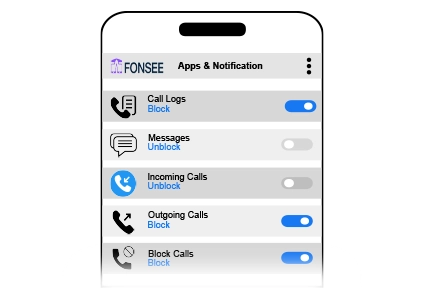
Check available status before assuming a feature failed.
A device info app can show available model, operating-system, battery, storage, or connection details from a supported family phone after setup.
Families often own several phones with similar names. Checking the device first prevents a parent from troubleshooting, restricting, or reviewing the wrong one. Accurate device details make compatibility checks and support requests clearer. They can also explain a delayed update caused by low power, no connection, or a system change.
Battery and connection status can change after the last update. Hardware details do not show who was using the phone or why an activity happened. A dashboard may show only the information the phone can provide. Missing, delayed, or partial data should be treated as a technical limit, not suspicious behavior.
The sample view keeps device information, the selected family phone, and the available time or source details together. Start with the item tied to your question. Check its label and surrounding context instead of opening a wider history without a reason.
Battery and connection status can change after the last update. Hardware details do not show who was using the phone or why an activity happened. Check the available source and time before deciding what the information means.
A defined reason keeps the review focused and easier to explain. These examples show how the feature can support a conversation without turning ordinary phone use into a constant investigation.
Check power, connection, operating system, and selected phone before reinstalling or changing account settings.

Use the device information instead of guessing from the phone’s appearance or family nickname.

Review current compatibility and permissions after the operating system changes.
Available phone information depends on device support, permissions, connection, storage, account settings, and plan. Confirm what is included before setup.
Check device compatibilityConfirm the exact phone, operating system, setup method, permissions, connection needs, and FonSee plan before you depend on the feature.
Decide which information serves a real family need, who may view it, how it will be protected, and when it should be deleted.
Open the smallest useful part of device information, check the available source and time, and use it to confirm compatibility and troubleshoot the right phone. Close the dashboard when the question is answered.
Personal phone data can include private details about other people. Limit access, protect the dashboard, and avoid keeping copies without a clear reason.
Connect only a phone you own or are allowed to manage. Follow the notice, consent, privacy, and recording rules that apply where you live.
Device names can look similar. Check the model and owner before applying a control or interpreting a status.
Use a strong password, limit account access, sign out on shared computers, and keep sensitive phone information out of group chats and social posts.
Parents need useful context and a clear next step, not more data for its own sake.
“The dashboard showed we were troubleshooting the older phone. Once we used the correct model and system version, the support steps made sense.”
Check the practical details before connecting a family phone.
It may show available model, operating-system, battery, storage, connection, or device-identification details.
No. Device support, permissions, phone power, connection, app rules, and setup timing can limit what appears or changes.
Support differs by operating system and setup method. Check the exact phone, version, permissions, and FonSee plan before buying.
Not always. The phone must connect and report new data, so the latest status may be delayed. Check the timestamp.
No. Support varies by phone, operating system, setup, permissions, connection, and plan.
Yes. Use it only on an authorized phone and follow applicable notice, consent, and privacy rules.
Check that the phone is online, connected, supported, and allowed to provide the feature.
No. Phone data gives limited context. Ask what happened before reaching a conclusion.
Check compatibility and compare plans for the exact family device you intend to connect.
