

Remote camera view
Open an available camera view from a properly configured and supported family phone.
FonSee can provide remote camera access on supported, authorized family phones. Use it for a specific agreed purpose, such as checking a shared space or helping locate a misplaced device, and always respect the privacy of everyone nearby.
Camera access is sensitive. Get permission, provide notice, and follow every law that applies to the people and place involved.
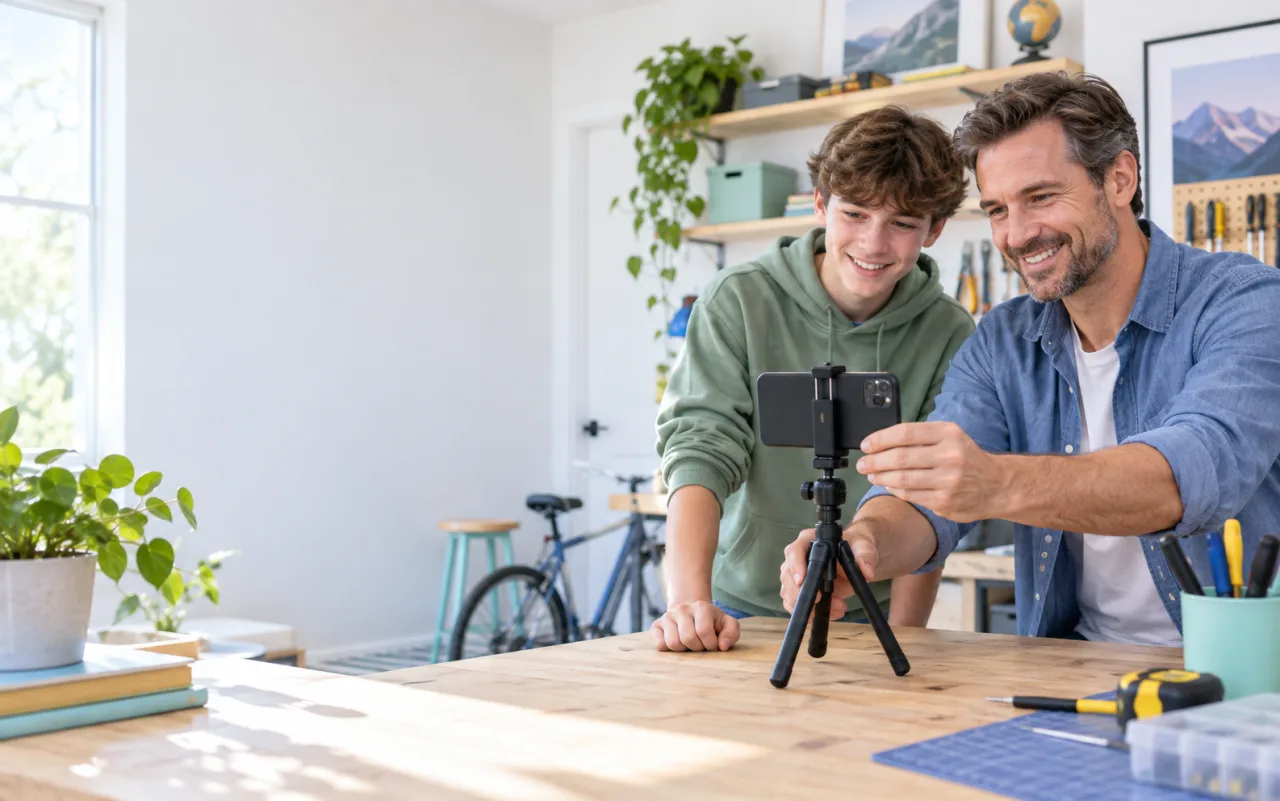
Open an available camera view from a properly configured and supported family phone.

Choose the available lens that matches the agreed purpose and device support.

Keep supported camera controls with the other authorized phone information you use.
FonSee camera tools can connect to an available phone camera on supported Android setups. Access depends on the device, operating system, permissions, network, plan, and any platform restrictions.
A remote camera app can be helpful in a narrow situation. A parent might use an agreed view to check a shared room, help a teen position a device, or see whether a misplaced family phone is where expected. The same feature can become intrusive when people do not know it may be used.
Decide where camera access is acceptable, when it may be opened, and who could appear in view. Bedrooms, bathrooms, changing areas, schools, workplaces, and other private or regulated spaces need special care and may be off limits under law or policy.
The FonSee camera area is designed to keep the selected device and available controls easy to identify. Before opening a view, confirm that the phone, the place, and the people nearby match the agreement you made.
Permission from the phone owner may not cover every person in view. Consider the setting, local law, school or workplace rules, and the privacy of others.
The safest examples have a defined beginning and end. If you would not be comfortable describing the check to the people involved, do not use the feature.
Use an agreed camera position to check a common room for a specific reason. Make sure everyone who uses the space knows the arrangement.

Camera context may help confirm whether an authorized device is in a familiar place, but location and device-status tools are often a better first step.

Guide a family member through positioning or switching an available lens while you are both aware that the camera view is open.
Remote camera access may require direct setup on the Android phone. Review the current compatibility details instead of assuming every model works the same way.
Check device compatibilityConfirm the model, Android version, required device access, and whether camera use is lawful and appropriate in the intended setting.
Follow the connection guide on the authorized phone and explain which camera controls may appear in the dashboard.
Write down the allowed reason, place, and time. Stop the view after the check and revisit the agreement if circumstances change.
Camera access can reveal faces, homes, documents, and conversations. Use the strongest privacy judgment even when the dashboard makes a view technically available.
Do not use remote camera access in places where a person reasonably expects privacy or where recording is prohibited.
Think about visitors, classmates, coworkers, and anyone else who may enter the frame without knowing about the feature.
Use a strong account password, limit who can open the dashboard, and sign out on shared computers.
Parents need more than a camera control. They need a shared understanding of when the feature may be used and when it should remain closed.
“We agreed on one shared-space use before connecting the phone. That made the boundary simple for everyone in our home to understand.”
Support and legal permission can change by device and situation. Check both before depending on the feature.
It is software that can make an authorized device camera view available from another dashboard or device. FonSee support depends on phone compatibility, setup, permissions, and network access.
Available lens controls vary by device and operating system. Check the current compatibility information for the exact Android phone before choosing a plan.
A current connection is generally needed for the phone to send new information or a camera view. Poor signal, power-saving settings, or an offline device can interrupt access.
Do not use camera access without the notice and permission required by law and your family agreement. Secret camera use can violate privacy, recording, school, or workplace rules.
Rules differ by location and setting, and bystanders may have privacy rights. Get appropriate legal advice and avoid capturing anyone who has not received required notice or given required consent.
Camera access is limited by operating-system rules and connection methods. Review the current iPhone compatibility details rather than assuming Android and iPhone features match.
Confirm the device is online, powered, properly connected, and allowed to use the camera. Then review operating-system permissions and feature compatibility.
No. A direct call or message is usually the clearest check-in. Use remote camera information only for the narrow purpose everyone agreed to.
Review device support, permissions, local rules, and the family agreement before connecting a phone.

